
Buying a computer shouldn’t feel like decoding a secret language. But the market makes it easy to overspend on power you’ll never use—or underspend and end up with a slow machine that becomes frustrating within a year. The best approach is simple: choose a computer based on what you actually do, then buy the most reliable option that meets those needs with a little room to grow.
This guide walks through a practical decision process that works whether you’re choosing a computer for your home, a small business, or a church office where multiple people may share the same device.
1) Start With the Job: What Will This Computer Actually Do?

Before comparing specs, write down the top 5 things this computer must do. Most purchases go wrong because people buy based on marketing labels—“fast,” “gaming,” “business-class”—instead of real tasks.
Here are common categories:
Basic everyday work
Email, web browsing, documents, online meetings, simple spreadsheets, church admin work, printing, and basic photo handling.
Office productivity + multitasking
Heavier spreadsheet work, lots of browser tabs, multiple apps open at once, regular Zoom/Meet calls, bookkeeping software, and basic design tools like Canva.
Creative work
Photo editing (Lightroom/Photoshop), graphic design, video editing, audio work, or livestream production.
Specialized software
Accounting tools, database work, CAD, development tools, or church presentation software used alongside other apps.
Shared environment
A computer used by staff and volunteers, where clear logins, reliability, and simple maintenance matter more than peak performance.
Once you identify your main category, your choices become much easier. A computer built for video editing is not automatically better for office use—it’s often just more expensive.
2) Laptop or Desktop?
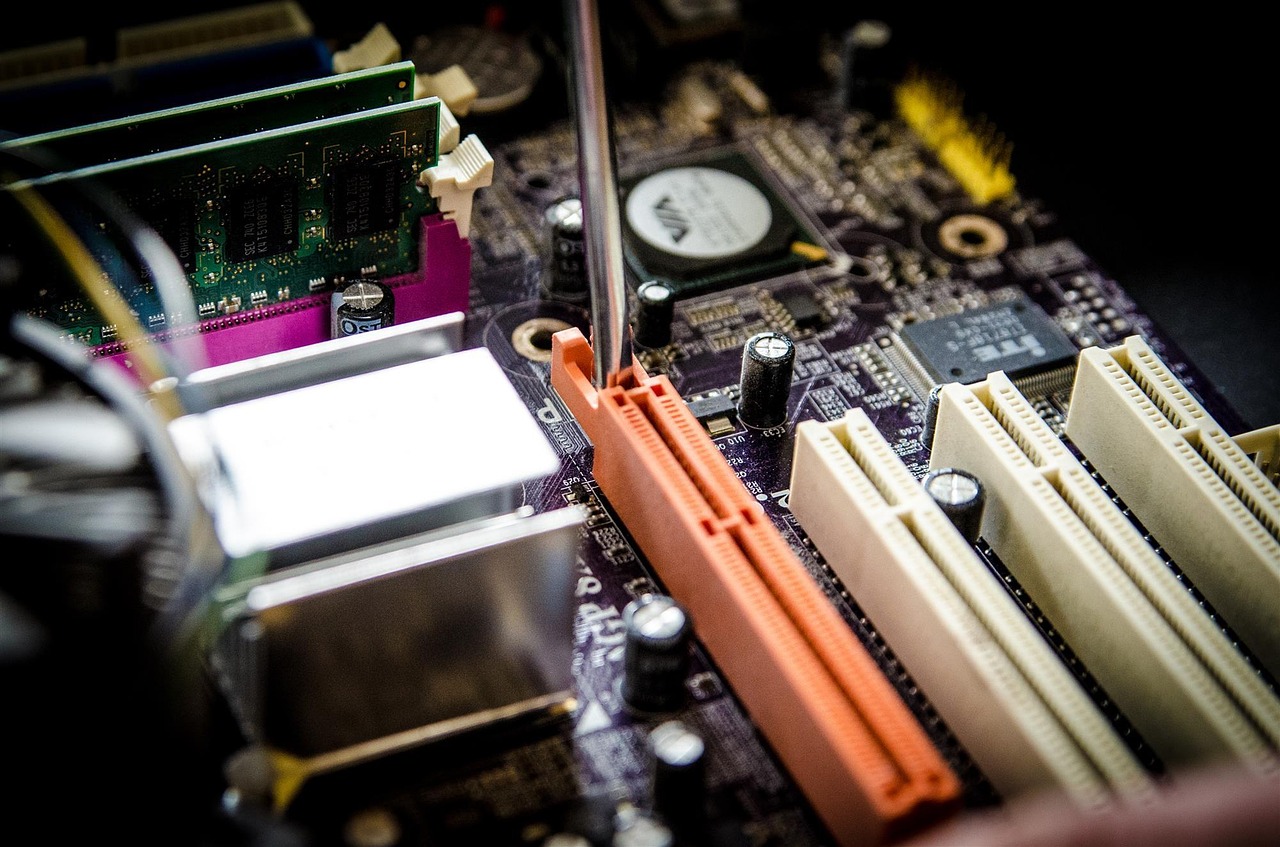
This is the first big fork in the road.
Choose a laptop if you need:
- Portability (meetings, home/office switching, travel)
- A flexible workspace (moving between rooms, sanctuary, office)
- Fewer cables and a simple setup
Modern laptops can handle most office and admin work easily. If you’re doing church operations, a laptop is often the simplest option—especially if one person needs to take it between home and the church.
Choose a desktop if you want:
- More performance per dollar
- Easier upgrades and repairs
- A dedicated workstation that stays put
- Better long-term cooling and durability under heavy loads
If your computer lives in one office and doesn’t need to move, a desktop is usually the better value. Many churches also benefit from a desktop for a shared admin station, because it’s harder to “walk away” with, and easier to set up with a proper monitor, keyboard, and printer access.
Best of both worlds: A laptop with a docking setup (or just one cable to a monitor) is a very practical hybrid—portable when needed, comfortable at a desk the rest of the time.
3) The Specs That Actually Matter (and the Ones That Don’t)
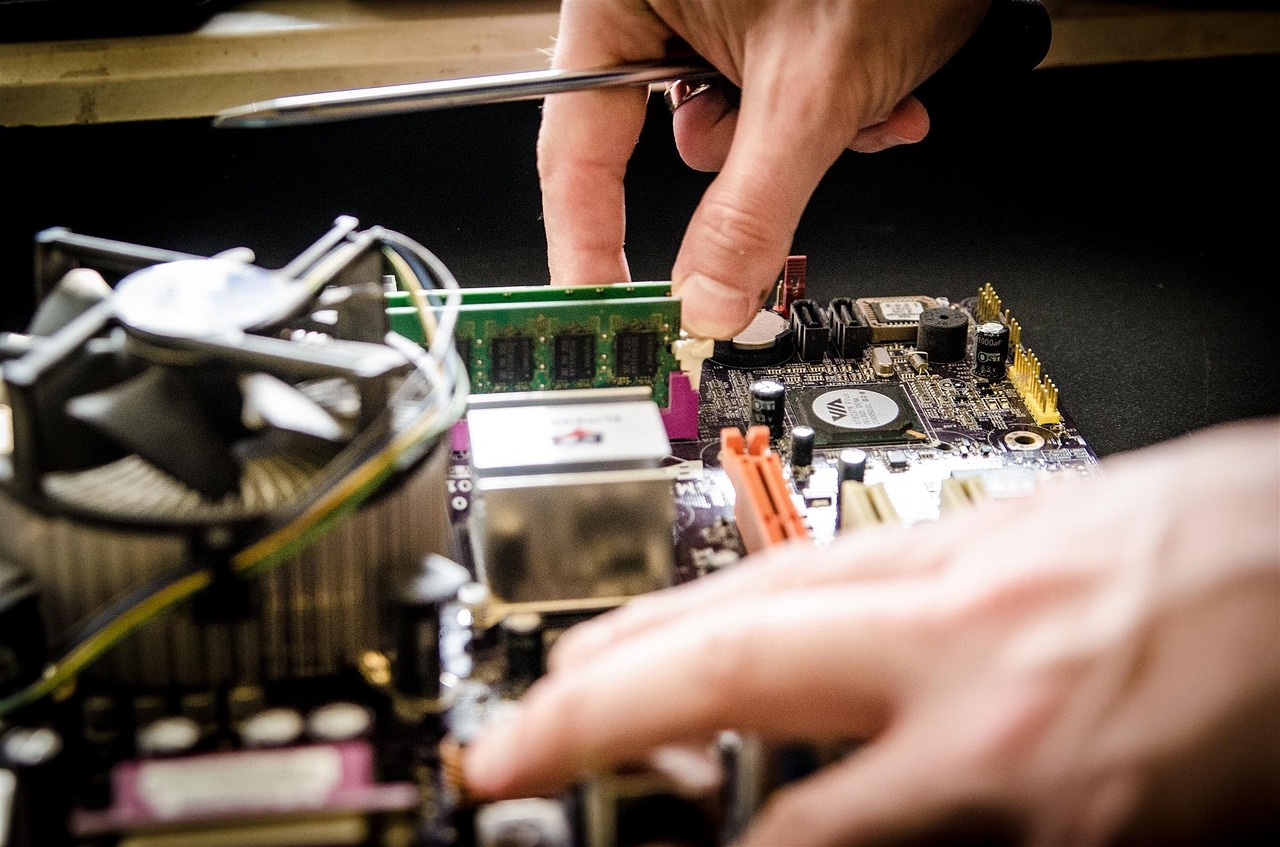
You don’t need to memorize model numbers. Focus on the few components that impact everyday performance.
CPU (Processor)
The CPU affects how quickly your computer can handle tasks. For most people, you want a modern mid-range processor, not the cheapest option available.
A simple rule: avoid the “lowest tier” processors in any brand if you plan to keep the computer for several years. The cheapest CPUs can feel fine at first, but slow down quickly as software updates and browser demands increase.
RAM (Memory)
RAM is what makes multitasking feel smooth. If you open lots of tabs, use video calls, or switch between several apps, RAM matters a lot.
- 8 GB RAM: minimum for light use, but can feel tight in real life today
- 16 GB RAM: the practical sweet spot for most people and offices
- 32 GB+ RAM: helpful for video editing, large design files, heavy multitasking
If you’re buying for a church office where multiple tools are open (email, spreadsheets, church management software, browser, video call), 16 GB is a safe and comfortable target.
Storage: SSD vs HDD
This is non-negotiable: get an SSD. A computer with a traditional hard drive (HDD) will feel slow no matter how good everything else is.
- 256 GB SSD: workable for basic use, but can fill up quickly
- 512 GB SSD: better for most users
- 1 TB SSD: great for photo/video work or if you store a lot locally
If you store documents in cloud services (Google Drive, OneDrive), you can get away with less storage. If you keep lots of files locally—photos, videos, archived documents—aim higher.
Graphics (GPU)
For most office work, you do not need a dedicated graphics card. Integrated graphics are fine for browsing, documents, and video calls.
You may want a dedicated GPU if you do:
- Video editing
- 3D work
- Serious gaming
- Heavy design workflows on large files
For churches doing livestream production or editing sermon clips, a better GPU can help—but only if the workflow truly includes editing and production tasks beyond basic streaming tools.
Display and ergonomics
A computer that “works” can still be miserable if the screen is dim or the keyboard is uncomfortable. If you’ll be using it daily, prioritize:
- A bright, readable display (especially in offices with overhead lights)
- A comfortable keyboard and trackpad (for laptops)
- A proper monitor setup if it’s a desk-based computer
For shared use, a larger external monitor makes a bigger difference than people expect—especially for admin tasks, planning, and spreadsheets.
4) Windows or Mac?
This decision is less about “which is better” and more about compatibility and comfort.
Windows is usually best if you:
- Need broad software compatibility
- Use specialized business tools
- Want more hardware choices at different budgets
- Need easier local repair options and replaceable parts (varies by model)
Windows is also often the default for churches because many tools, printers, and presentation setups are built around it.
Mac can be a great choice if you:
- Prefer Apple’s ecosystem (iPhone, iPad, AirDrop)
- Do creative work (photo/video/audio)
- Want a simple, consistent user experience with strong battery life
The biggest caution is compatibility: if your church uses specific software, presentation setups, or legacy tools, confirm they work well on macOS before committing.
Practical approach: choose the system your team already knows—especially in volunteer environments. Familiarity reduces training time and prevents avoidable mistakes.
5) Buying New vs Refurbished (and How to Spend Wisely)
A reliable computer is often a better value than the cheapest computer.
New computers make sense when:
- You want the longest usable lifespan
- You need strong battery health (laptops)
- You want a full warranty and predictable reliability
Refurbished computers can be a smart choice when:
- You’re equipping an office on a budget
- The device comes from a reputable refurbisher with a warranty
- You’re buying a “business-class” model that’s built to last
Many organizations do well with refurbished business laptops or desktops because they’re designed for durability, and they often outperform cheap consumer models.
Smart budgeting tips
- Spend on SSD + RAM before anything else
- Avoid the lowest-tier CPU options if you want longevity
- Don’t pay extra for “features” you won’t use (extreme graphics, high-refresh gaming screens)
- If you’re buying for office work, invest in a good monitor and keyboard—comfort matters
6) Reliability, Support, and the Real Cost of Ownership
A computer isn’t just a purchase—it’s a tool you rely on. In churches and small teams, downtime is expensive even if nobody “bills hours.” A flaky laptop right before Sunday, or a desktop that won’t boot during payroll, creates stress that costs more than the price difference between models.
Look for:
- Solid warranty options
- A brand/model line known for stability
- Easy access to service if repairs are needed
- A plan for backups (even the best computer can fail)
If you’re buying for a shared environment, reliability and simple maintenance matter more than having the newest features.
7) A Simple Checklist Before You Buy
If you want a quick “good choice” baseline for most users, this is a safe target:
- Modern mid-range CPU
- 16 GB RAM
- 512 GB SSD (or 256 GB if truly light use + cloud storage)
- Solid display (avoid dim, low-quality panels)
- Webcam and microphone good enough for meetings
- Warranty you understand
- A backup plan (cloud + local, or at least one consistent method)
This combination avoids the common traps and gives you a computer that feels fast and stays that way.
Conclusion: Choose for Your Real Work, Then Buy for Longevity
The best computer is the one that supports your daily tasks with minimal friction. Start with the job, pick laptop vs desktop, focus on RAM and SSD, and don’t underestimate reliability—especially if the computer supports a church office, a small business, or anyone juggling many responsibilities.
If you’re unsure, a short needs assessment can save money and prevent months of frustration. The goal isn’t to buy the “most powerful” computer—it’s to buy the right one, set it up well, and keep it dependable for years.